Showing posts with label Computer tips and tricks. Show all posts

Wednesday, May 16, 2012

Create a Shortcut or Hotkey for the Safely Remove Hardware Dialog

If you often use removable USB devices like a flash drive, you are probably already familiar with the “Safely Remove Hardware” icon that sits in the system tray. The problem for many people is that the icon is tiny, and clicking it just right to bring up the menu is a pain.But don't worry,you can make a shortcut for this.For this do the following step
  • Right-click anywhere on the desktop and choose New > Shortcut:
  • Write 'RunDll32.exe shell32.dll,Control_RunDLL hotplug.dll' in the location box.
  • Give it a name, and you’ll have a shortcut icon that will pull up the Safely Remove Hardware dialog.
Now when you want to remove a USB device just double click in the short cut icon and easily remove the device.

If you want to assign a shortcut key to this dialog, you can right-click the icon and open the properties dialog, then go to the Shortcut tab.Add in the shortcut key and close the dialog. As long as the shortcut is on your desktop you shouldn’t have to restart anything for the hotkey to work. You can also move the shortcut to another folder, for instance your quick launch bar.

Saturday, May 12, 2012

How to speed up your PC???

To speed up your PC than past, follow the below processes:
Go to run > type recent>Ctrl A>Ctrl D>ok
Go to run > type temp>Ctrl A>Ctrl D>ok
Go to run > type %temp%>Ctrl A>Ctrl D>ok
Go to run > type prefetch>Ctrl A>Ctrl D>ok
Go to run > type tree>ok
Go to run > type cookies>Ctrl A>Ctrl D>ok
 

Make boot faster of your computer

sometimes it takes a long time to start computer because of slow boot of your computer.But you can make fast boot so that your computer will start faster.If you want to make faster boot do the follow:
1.Go to Start/Run and type msconfig and press Enter.Go to Startup tab and here you will see a list of startup items.This are all the program that automatically start when you boot your computer.It is this that slow down your computer's boot up process.So uncheck all the unwanted program ms-office,messenger etctht you may need at start up.But be careful that don't uncheck your antivirus.Then click ok.Now restart your computer and see yourself that how faster your computer start.

2.A great new feature in Microsoft Windows Xp has the ability to do a boot defragment.This places all boo files next to each other on the disk to allow for faster booting.By default,this option is enabled,but on some system it is not. But don't worry,you can turn it on by doing this:
Go to Start/Run and type regedit and then enter.

Tuesday, January 31, 2012

Make a shortcut icon to shut down windows at a specific time


Today I'll share an interesting trick.Using this you can make a timer to shut down computer at a specific time.When the specific time come,windows will shut down automatically.For this,do the follows:


1: Right click on your desktop and choose “New=>shortcuts”.


2: In the box that says “Type the location of the shortcut”,
type in “shutdown -s -t 3600

Sunday, January 29, 2012

Shut down faster in windows xp

Sometimes it takes a long time to shut down windows xp.Generally it occur when windows waits to automatically close of all running programs. You can easily reduce this waiting time of windows and shut down faster.
For this go to Start/Run and type regedit and press enter.Then go to HKEY_CURRENT_USER/Control Panel/Desktop/WaitToKillAppTimeout.Right click in it and then select Modify.Change the value as 1000.Then click OK.
Again find HKEY_USERS/Default/Control Panel/Desktop/WaitToKillAppTimeout.Right click and select Modify.Change the value as 1000.
Then Restart computer.Now your computer will shut down faster than before.

Saturday, January 28, 2012

Disable indexing option to free up Ram

Indexing option is a little program that uses large amounts of Ram and can often make a computer slower.This system process indexes and updates lists of all the files that are in your computer.It does this so that when you do a search for something on your computer,it will help to search faster by scanning the index lists.If you don't search your computer often,or even if you do search often,this option is completely unnecessary.you can save Ram memory by disable this option.

Wednesday, January 25, 2012

Speed up internet up to 20%

Microsoft reserves 20% of your available bandwidth for their own purpose like Windows Update and interrogating your PC etc.But you can get it back easily by following procedures.
First go to Start/Run and type gpedit.msc.Then press enter and you will see the Group policy editor.
Then go to Local Computer Policy/Computer Configuration/Administrative Templates/Network/QOS Pocket Scheduler/Limit Reservable Bandwidth.Double click in Limit Reservable Bandwidth.It will say that it is not configured,but the truth is under the Explain tab that is by default the Pocket Scheduler limits the system to 20%  of the bandwidth of a connection. But you can use this setting by override the default.
So the trick is to Enable reservable bandwidth ,then set it to 0.This will allow the system to reserve nothing,rather than the default 20%.After doing all of this,Restart computer.It works on Windows 2000 as well.That's all...

Folder option missing??? Enable folder option

Sometimes the folder option become missing or disable in windows explorer due to some virus or Torjon effect.If you are facing this problem you can solve it in that way:
Go to Start/Run and type 'gpedit.msc'.Now go to User Configuration/Administrative Templates/Windows Component/Windows Explorer.

Sunday, January 22, 2012

How to Forward Messages to Your Gmail Account


Sometime it is easier and more convenient to handle and operate one email account rather than many email accounts. If you are not using email softwares such as Microsoft Outlook or Outlook Express, it is very time consuming to log on to every email account to check your emails. Occasionally, you can also forget your log in name and password.
If you are using Google’s Gmail account, you can actually copy messages from another account into your Gmail Inbox. Thanks to Google’s new Mail Fetcher feature. The setting up of the email program from your email account to forward all your new messages to your Gmail Inbox is quite fast and easy.

Sunday, December 11, 2011

Allowing network access with blank password in Win Xp

Although you can log in locally without a password,by default,Windows Xp Pro does not allow network users access the computer without a password.Typically you will receive an unknown error 31 if this is the case occur.But don't worry,you can change the settings.For this go to Start/Run and write gpedit.msc and enter. Then go to Computer Configuration?Windows Settings/Security Settings/Local Policies/Security Options.Now double click on Accounts:Limit local account use of blank passwords to console log in only and Disable it.Now restart your pc.Now your problem will solved.

How to make your Windows Xp genuine

Windows Xp is one of the most popular operating system for computer users.Windows Xp is popular for it's professional preference and simple modification.But most of us use pirated Windows Xp in our computer.Do you want to make your Windows Xp genuine?It's very simple.Just follow the procedure.
First open a notepad from start/Run/Notepad.Now copy and paste the following code:


Windows Registry Editor Version 5.00
[HKEY_LOCAL_MACHINESOFTWAREMicrosoftWindows NTCurrentVersion]
“CurrentBuild”=”1.511.1 () (Obsolete data – do not use)”
“ProductId”=”55274-640-1011873-23081″

Thursday, December 1, 2011

A smart MP3 player

Most of the audio file are in MP3 format.So you need a good MP3 player to play MP3 songs.So today I'll tell you about a small but very helpful MP3 player.This software is small but  it has  nice appearance and works good. Download this software from here and install it.Now enjoy the greatest MP3 player...

Saturday, November 19, 2011

How to update ESET NOD32 antivirus without internet connection

We use antivirus to protect computer from virus,malware etc other harmful program.But every antivirus need to update it's virus database to work.But if you have no internet connection how you update the antivirus software.But if you use ESET NOD32 antivirus,you can update your antivirus without internet connection.For this you can use ESET NOD32 Offline Update software.Download the software from here.After download,extract the zip file and then install the .exe file.After installing,don't need to do anything.your ESET NOD32 antivirus will update automatically in offline.so become tension free... :)

Sunday, November 13, 2011

Remove autorun virus from computer,pen drive and memory card

We use pen drive and memory card to transfer data to another device.But pen drive and memory card is he most common way to enter virus to computer.Autorun virus is one of the most common virus which spread through pen drive and memory card.So today I'll tell you about a smart software which can make free your computer,pen drive and memory card from autorun virus. This software is worked as a vaccine for your computer,pen drive and memory card.It will keep protected pen drive lifetime until windows setup.
This software is named Panda USB Vaccine.It is only 1 MB size

Tuesday, November 1, 2011

A great reader software

Most of the computer user prefer to use Adobe Reader to read pdf file in their computer.But Adobe reader have some disadvantage.Because after install,Adobe Reader need almost 100 MB  which can make slow down your computer.So today I'll share a great reader software named Foxit Reader.This software is only 12 MB

Tuesday, October 25, 2011

Password recovery disk

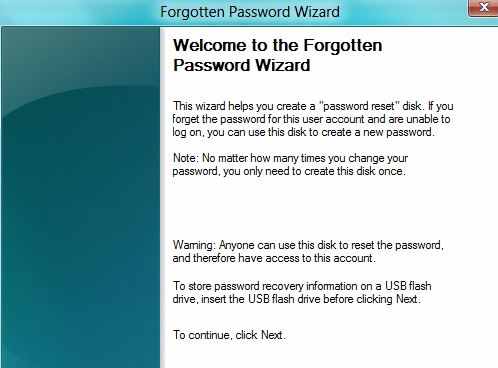
Take preventive measures against losing user-level passwords. It doesn't matter if you never again remember a Windows user password. Thanks to XP's Forgotten Password Wizard, your conscience will be free and clear -- should your mind happen to accidentally misplace your user password. I highly suggest you create a password recovery disk the minute you create your user account. Why? In order to create a password recovery disk you're going to need your password. Write it down the minute you create your user account and then proceed to creating your very own password recovery disk. Here's how to launch the Forgotten Password Wizard:

XP Game Compatibility

You want to know if all your favorite games are still going to run under Windows XP. Remember what happened when we tried to run games on our Windows 2000 machines? Sometimes we were a little disappointed. Windows 2000 was made more for corporate applications than "Quake," but true techno-geeks know they don't have to sacrifice death matches for a robust business environment -- at least not anymore. Windows XP has shown an impressive track record of game compatibility. We ran a number of standard games, such as "Tiger Woods Golf," "NHL 2001," "Max Payne," and "Unreal" on our Windows XP Professional machine.

Monday, October 10, 2011

Speed up your browsing of Windows 2000 &XP machines

Here's a great tip to speed up your browsing of Windows XP machines. Its actually a fix to a bug installed as default in Windows 2000 that scans shared files for Scheduled Tasks. And it turns out that you can experience a delay as long as 30 seconds

For a Safer, faster XP CloseUnwanted Services

To disable unneeded start up services for a safer, faster XP, use the "Services" Admin Tool (Control Panel>Administrative Tools>Services). If you are a single user of a non-networked machine, you can disable the following items, with no ill effect. Alerter Clipbook Computer Browser Fast User Switching Human Interface Access Devices Indexing Service (Slows the hard drive down) Messenger Net Logon (unnecessary unless networked on a Domain) Netmeeting Remote Desktop Sharing (disabled for extra security)

10 things you didn't know about Windows XP


You've read the reviews and digested the key feature enhancements and operational changes. Now it's time to delve a bit deeper and uncover some of Windows XP's secrets.
1. It boasts how long it can stay up. Whereas previous versions of Windows were coy about how long they went between boots, XP is positively proud of its stamina. Go to the Command Prompt in the Accessories menu from the All Programs start button option, and then type 'systeminfo'. The computer will produce a lot of useful info, including the uptime. If you want to keep these, type 'systeminfo>info.txt'. This creates a file called info.txt you can look at later with Notepad. (Professional Edition only).
2. You can delete files immediately,